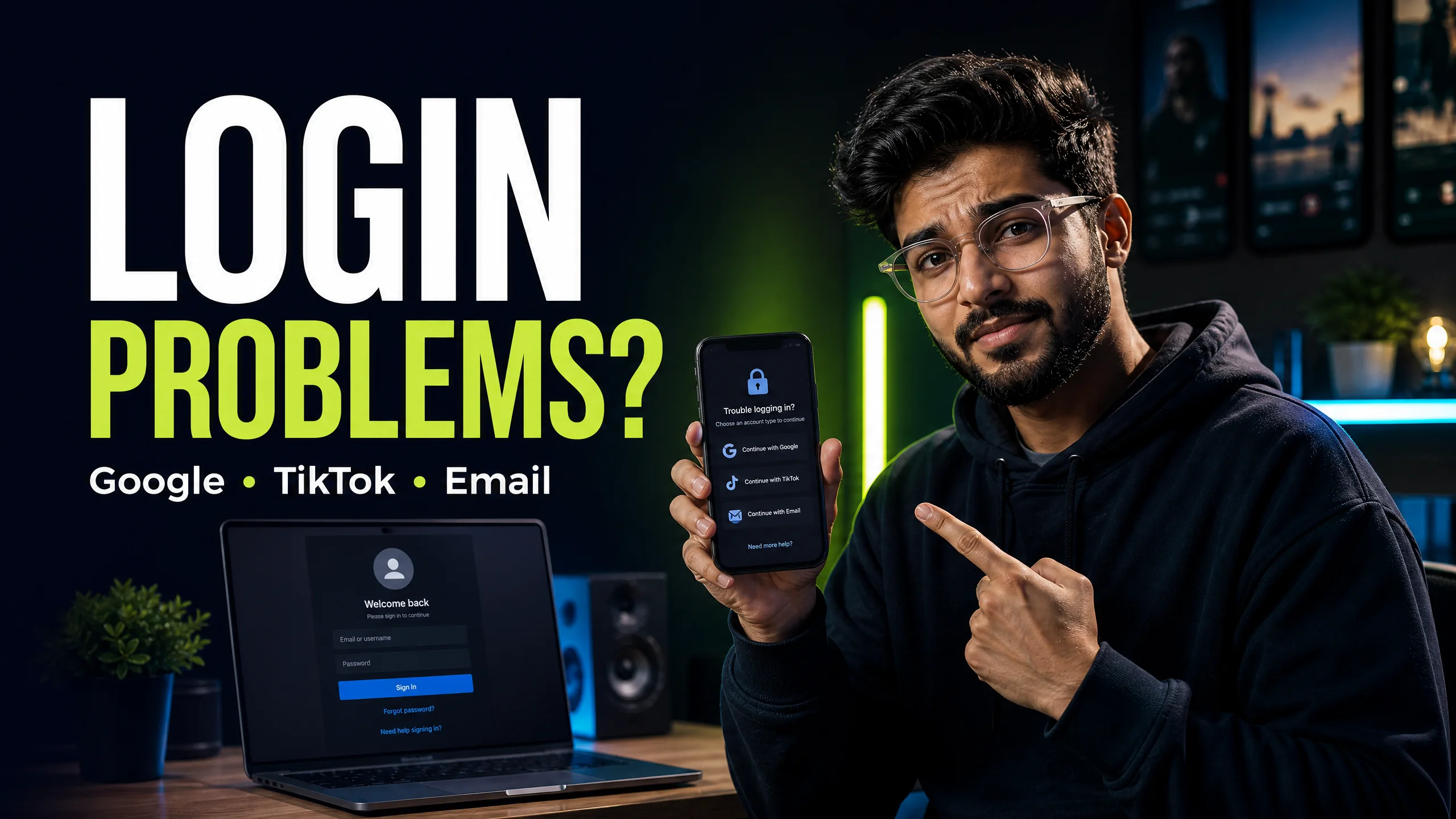
CapCut login problems: Google, TikTok, email, PC and QR fix
Use the right account method and fix common access problems without sharing sensitive credentials.
Read guide → By Rahul Verma·
The CapCut AI video generator can help turn an idea, script or image into a starting video. The exact button names and available AI tools can vary by device, account, app version and region, so use this workflow as a practical map rather than a promise that every account will show the same menu.

CapCut uses several AI-assisted workflows rather than one identical tool on every platform. Depending on what is available in your account, you may see an AI video maker, Instant AI video, text-to-video, image-to-video, script tools, avatars, auto captions or AI voice features. The official CapCut AI video editor guide describes a workflow that starts with the AI video maker, continues through script and scene creation, and ends with export settings.[1]
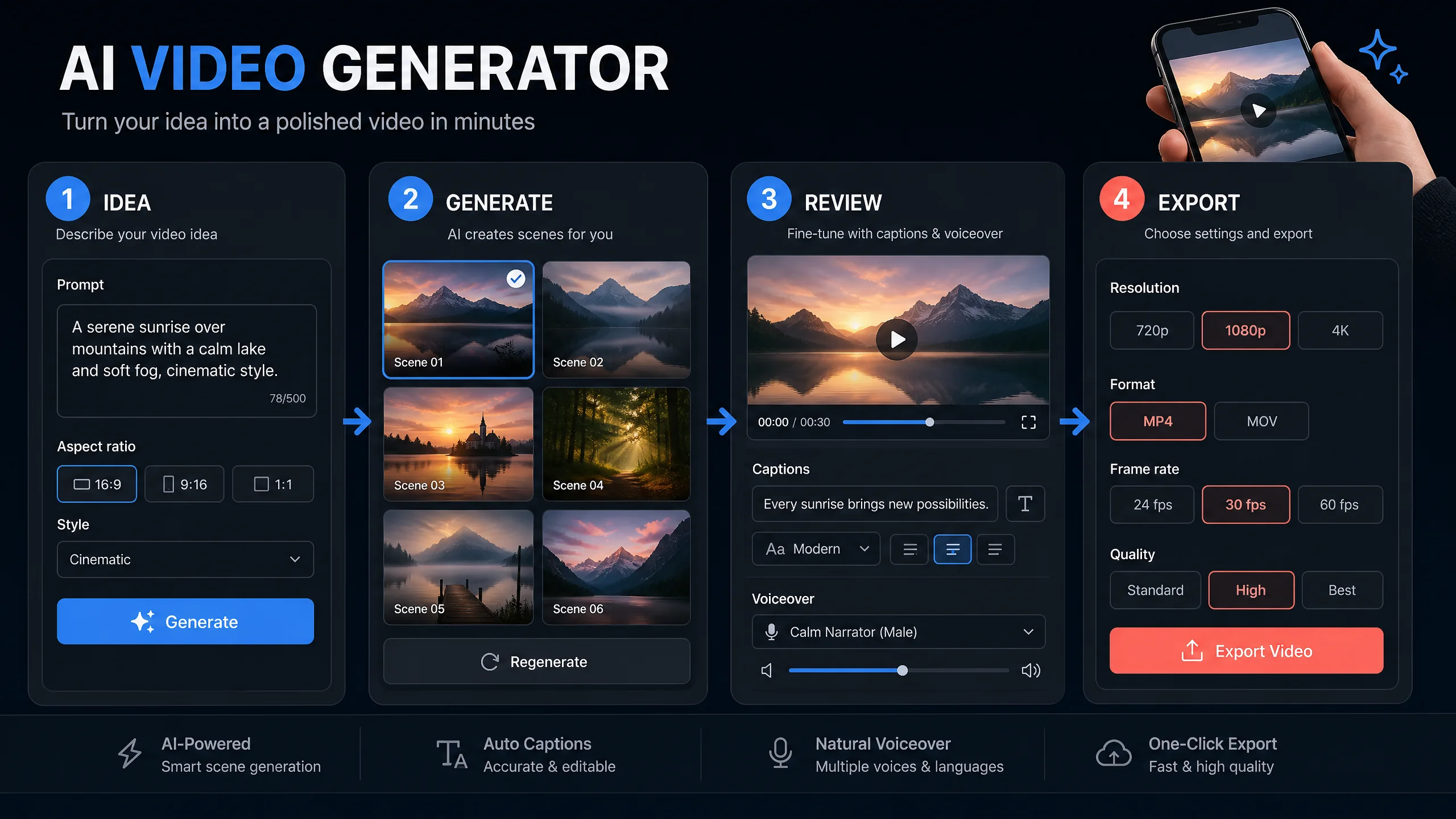
Prepare a short idea, the audience you are speaking to, the desired video length and the platform where you will publish. If you use an image or voice, make sure you own it or have permission to use it. AI generation can create a first draft quickly, but it can also produce incorrect wording, unsuitable visuals, awkward timing or a voice that does not match your intended message.
A vague prompt such as “make a video about fitness†leaves too many decisions to the tool. A stronger starting prompt is: “Create a 30-second Hindi vertical video for beginners explaining three simple desk-stretch habits. Use a calm, practical tone, short on-screen captions and a clear call to action.†Treat the result as a draft. Check every claim, name, number and translation before publishing.
On supported CapCut workflows, open a new project and look under the Media or AI media area for Text to video or Image to video. Add your prompt, select the available model or style, and generate a draft. CapCut’s official guide also describes editing the generated scenes with filters, effects, stickers, animation and speed controls before export.[2]
When the draft is ready, select Export and review the resolution, frame rate and format available to your account. Some AI tools, assets or export options may be restricted or marked Pro. If an export is blocked, check the selected asset and current membership status instead of repeatedly purchasing or changing accounts.
CapCut states that some AI features are available only in certain regions, and feature menus can be rolled out gradually. Update the app or browser, confirm that you are using the intended account, try the supported Web or desktop flow, and check the feature again later. If a feature appears on one platform but not another, allow the account to sync and review the feature’s official availability guidance.
Review the available BuyCutPro plans only after confirming the correct account and the features you actually need. BuyCutPro is an independent seller site, not the official CapCut website.
View available plans →References: CapCut AI video editor guide [1]; CapCut AI-generated video guide [2]. BuyCutPro is an independent website and is not the official CapCut website.
Stop struggling with free version limits. Get private access to CapCut Pro today.
View Private Plans →Senior Video Editor & Founder of BuyCutPro. Helping Indian creators optimize post-production workflows.
Connect on LinkedIn
Use the right account method and fix common access problems without sharing sensitive credentials.
Read guide →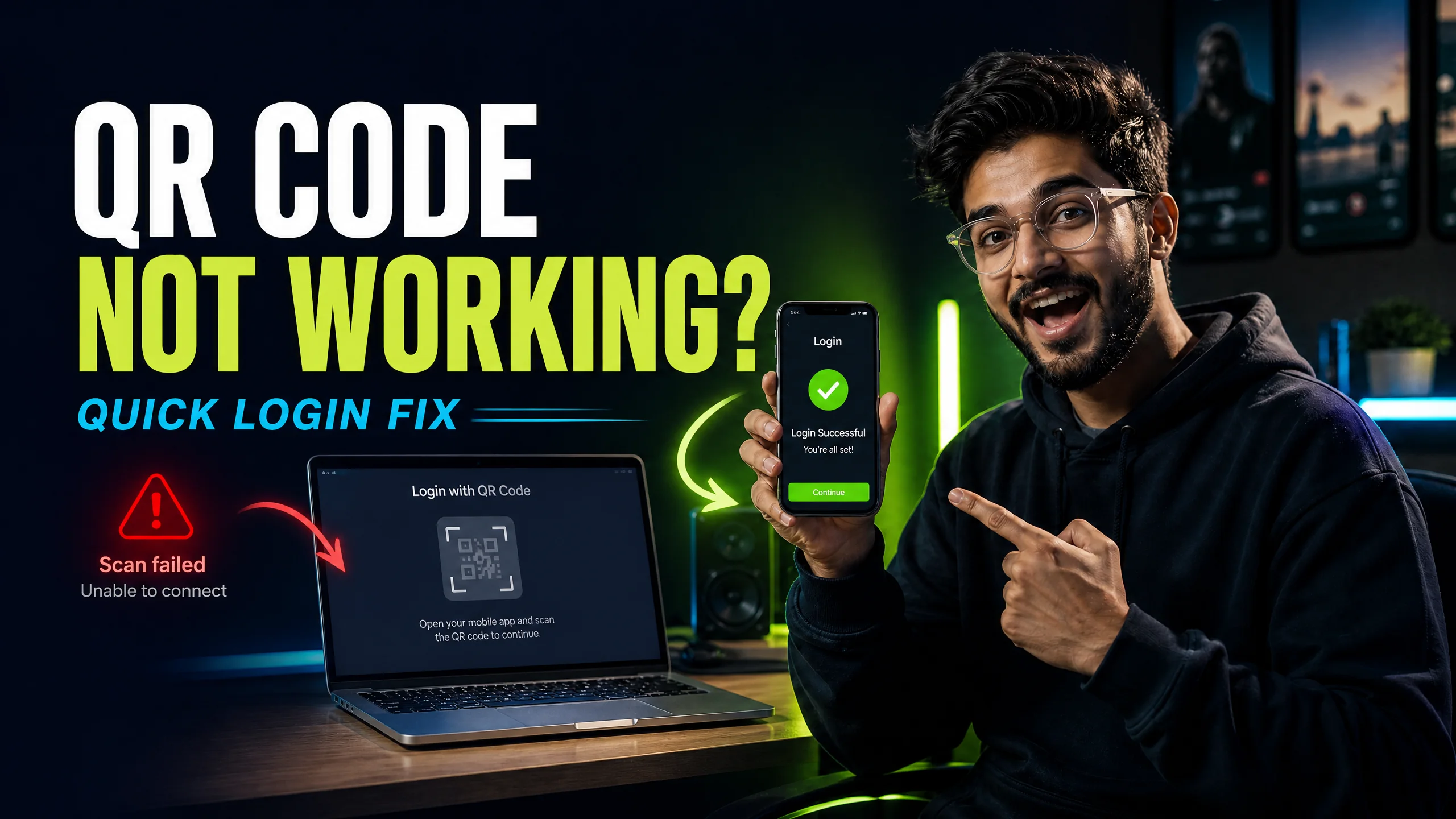
A focused troubleshooting checklist for missing codes, failed scans and wrong accounts.
Read guide →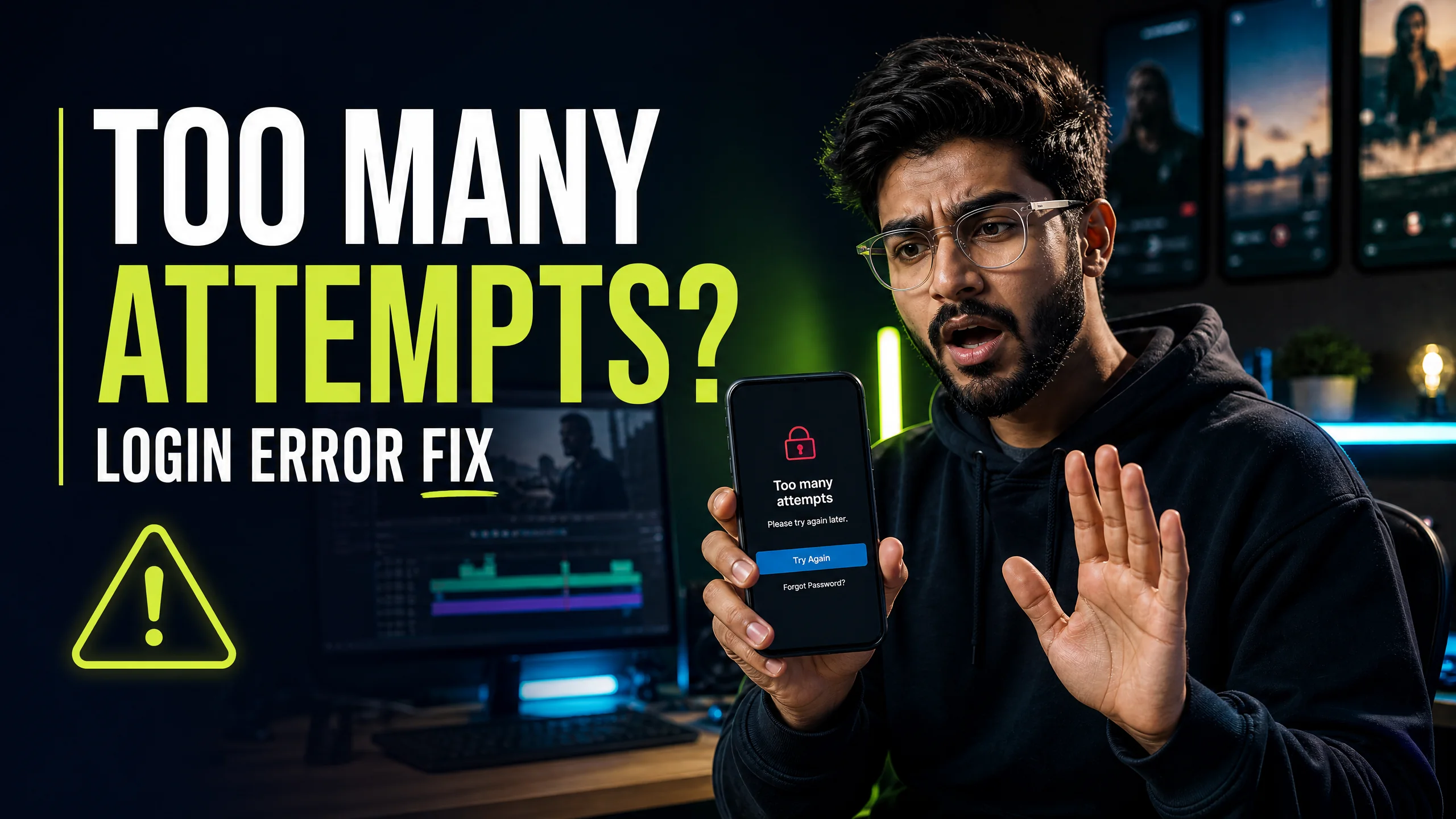
Stop the retry loop and use a cleaner account, network and device checklist.
Read guide →
A beginner-friendly workflow for creating, editing and checking feature access.
Read guide →