CapCut login problems: Google, TikTok, email, PC and QR fix
Use the right account method and fix common access problems without sharing sensitive credentials.
Read guide → By Rahul Verma·
I know it is incredibly frustrating when you try to log into CapCut on your PC, and the QR code either refuses to load or simply will not scan. If the QR code is completely blank or missing, you must immediately disable your browser's ad-blocker or strict privacy extensions, as these scripts falsely flag the dynamic image asset. Refresh the page, and the code will appear instantly. If the code shows up but your mobile app scanner cannot read it, the primary problem is a network cache mismatch. You must disconnect both your PC and your mobile phone from your Wi-Fi router, wait exactly 10 seconds, and reconnect. This forces the servers to generate a fresh, synchronized session ID between both devices. Never share a screenshot of your active QR code with anyone claiming to offer tech support.
The QR code login method is supposed to be the fastest way to access your CapCut desktop workspace. However, it is also the most fragile method. A single network hiccup or browser setting can break it entirely.
I troubleshoot this specific issue daily. Most creators waste time reinstalling the desktop app when the actual problem lies within their browser settings or router cache. I will show you exactly how to resolve this without losing any of your saved projects.
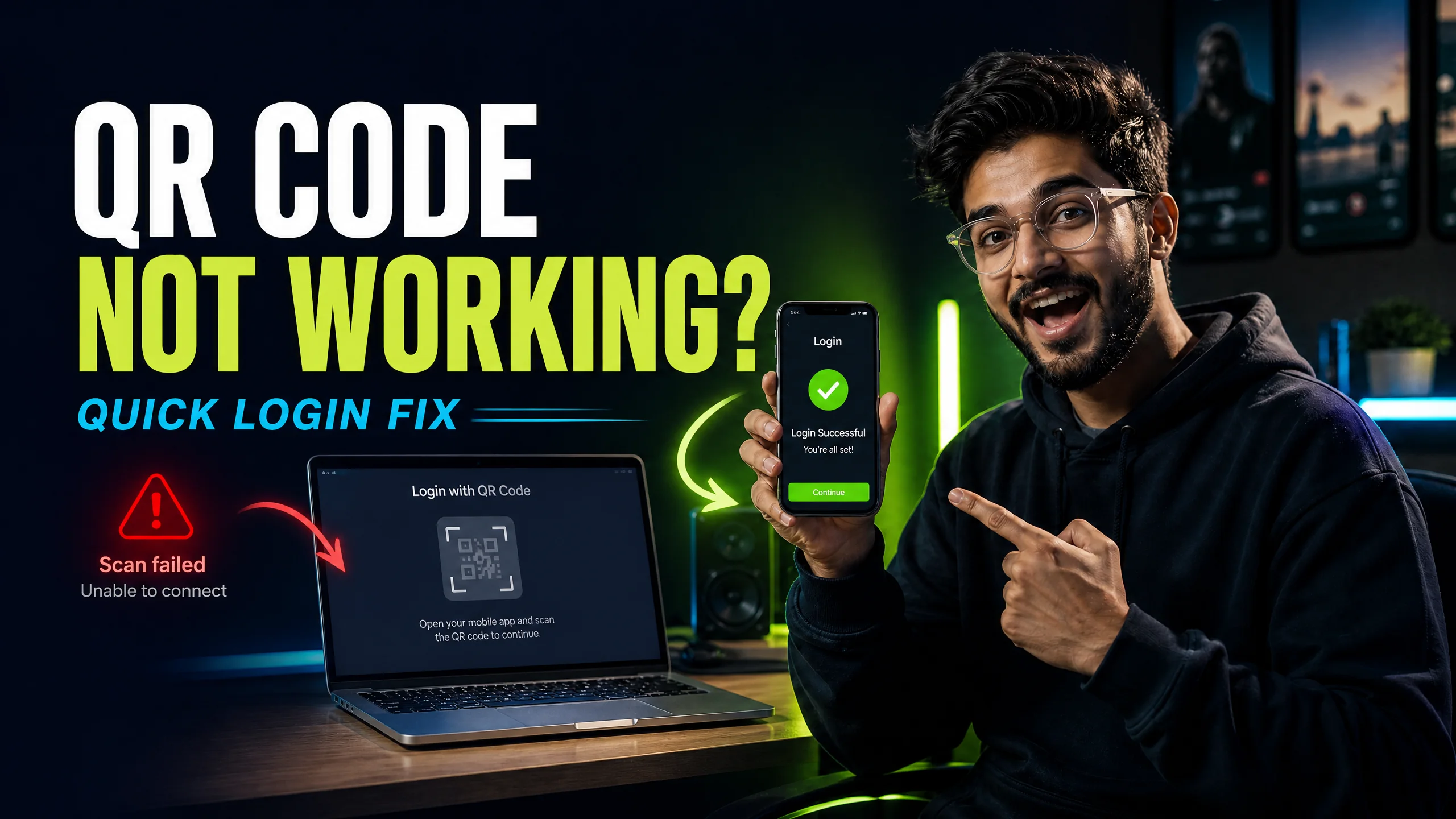
You open the desktop login screen, you select the QR option, and you stare at a blank white box. The image simply refuses to generate. This happens because CapCut uses dynamic JavaScript to generate a unique, time-sensitive image.
If you use a modern browser like Brave, or if you have extensions like uBlock Origin installed, these tools aggressively block dynamic tracking scripts. Unfortunately, they often mistake the CapCut login script for a tracker. You need to tell your browser to trust the official CapCut domain.
Before you start changing settings randomly, you need to identify your exact failure point. I have categorized the 3 most common QR issues below. Find your specific problem and apply the direct solution.
| What You See | The Root Cause | Immediate Solution |
|---|---|---|
| Blank White Box | Ad-blocker or Privacy Shield | Pause extensions and refresh. |
| Code Appears but Fails to Scan | Screen Glare or Lens Dirt | Increase PC brightness to 100%. |
| Scans but Says "Expired" | Network Latency / Time Desync | Sync Windows clock automatically. |
If you cannot even see the code, you cannot scan it. You must clear the path for the CapCut server to deliver the image asset to your desktop.
The fastest way to test if an extension is causing the block is to open a private or incognito window. These windows disable all third-party plugins by default. Go to the CapCut web login page. If the code loads immediately, you know an extension is the culprit.
Return to your normal browser window. Click your ad-blocker icon in the top right corner. Select the option to pause blocking on this specific site. Do the same for any privacy badgers or tracker blockers you have installed.
Sometimes your browser saves a corrupted version of the login page. You need to force it to download a fresh copy. Press Ctrl + F5 (or Cmd + Shift + R on Mac) to execute a hard refresh. The dynamic image will generate and display on your screen.
You see the code perfectly, but your mobile camera acts like it is looking at a blank wall. I know how annoying this is. The scanner in the CapCut app requires high contrast to recognize the digital anchor points.
I need to give you a critical security warning. Never take a screenshot of your active QR code. I see scammers on social media asking users to send them a screenshot of their login code to "help fix their account".
A QR code is essentially a machine-readable optical label that bundles your session credentials into a scannable picture. If you send that picture to a stranger, they will scan it with their own phone. They instantly gain full control of your CapCut account. They can delete your projects or steal your Pro subscription access. Keep your screen private.
The QR code is designed to expire every 60 seconds as a strict security measure. This ensures that if someone captures the image remotely, they only have a tiny window to exploit it before the session ID becomes useless.
No, you cannot use your default phone camera or a generic QR scanner app. You must open the official CapCut mobile app, go to your profile, and use the specific scanner built into the app's interface.
A network anomaly means your mobile phone and your PC are failing to synchronize the session handshake. You need to ensure both devices are connected to the internet without any active VPNs blocking the data packet transfer.
Stop struggling with free version limits. Get private access to CapCut Pro today.
View Private Plans →Senior Video Editor & Founder of BuyCutPro. Helping Indian creators optimize post-production workflows.
Connect on LinkedIn
Use the right account method and fix common access problems without sharing sensitive credentials.
Read guide →
Stop the retry loop and use a cleaner account, network and device checklist.
Read guide →
A beginner-friendly workflow for creating, editing and checking feature access.
Read guide →
Find a template, open it safely, replace the media and export a video that feels like your own.
Read guide →